Mining ES

Discover what’s possible.

Get a complimentary consultation today.

Discover what’s possible.

Get a complimentary consultation today.

EXPLORACIÓN MINERAL Y MINERÍA

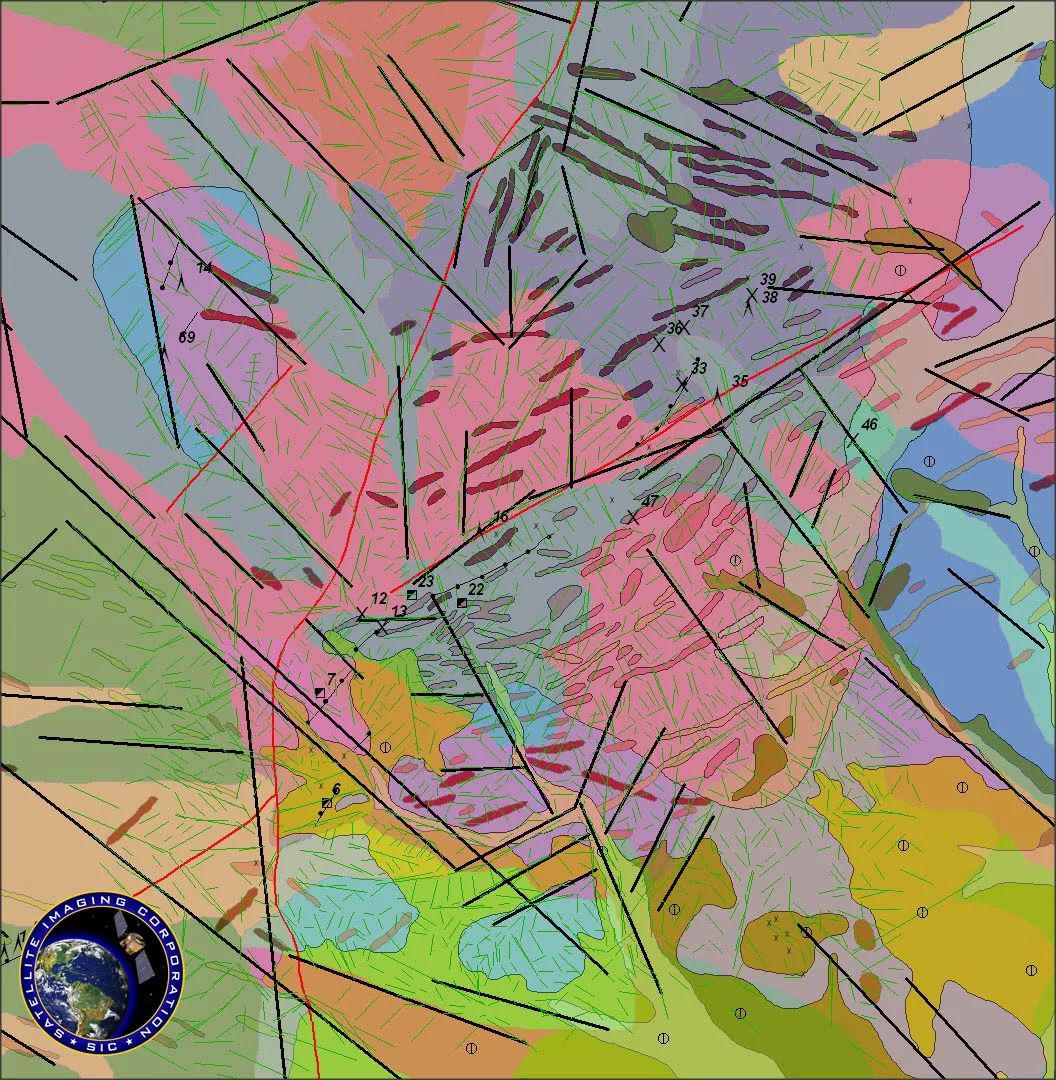
Las Imágenes de satélite y la fotografía aérea han demostrado ser herramientas importantes en el apoyo de proyectos de exploración mineral. Se pueden usar en una variedad de formas. Primeramente les suministran a los geólogos y equipos de campo la localización de senderos, carreteras, cercas y áreas inhabitadas. Esto es importante para elaborar mapas de corredores de acceso potencial para áreas de exploración y para considerar el impacto sobre el medio ambiente de proyectos mayores. Estas imágenes también son útiles para la preparación de mapas de afloramientos de rocas y sistemas de regolitos como también cobertura de vegetación a través de bloques de exploración y sobre áreas regionales.

Las imágenes de satélite pueden también beneficiar a geólogos, científicos, y administradores de exploración gracias a las bandas múltiples que los satélites utilizan, que les permiten interpretar longitudes de onda que no se pueden ver con el ojo humano. Cerca de infrarrojo, infrarrojo de onda corta, e infrarrojo térmico pueden usarse para identificar la diferencia en aspectos característicos de la superficie terrestre.

Imágenes multi-espectrales y mapas temáticos les permiten a los investigadores recolectar datos de reflexión y propiedades de absorción de suelos, rocas y vegetación. Estos datos pueden ser utilizados por fotogeólogos peritos en la interpretación de litologías de superficies e identificación de arcillas, óxidos, y tipos de suelos por medio de las imágenes de satélites.

el mio en

solución salina, california

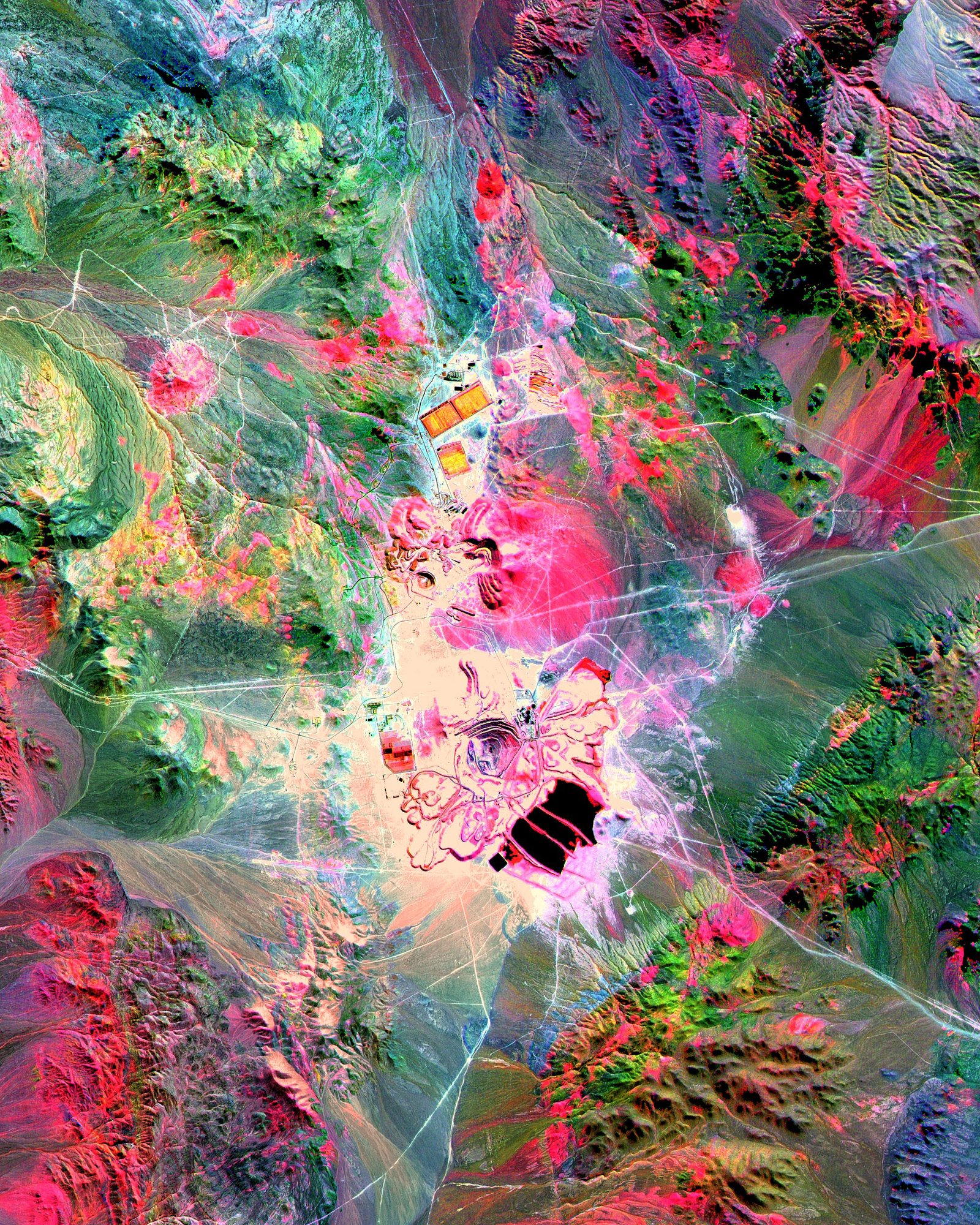
Valle Saline Mineral Maps, California

Imagen de Satélite ASTER (15m)

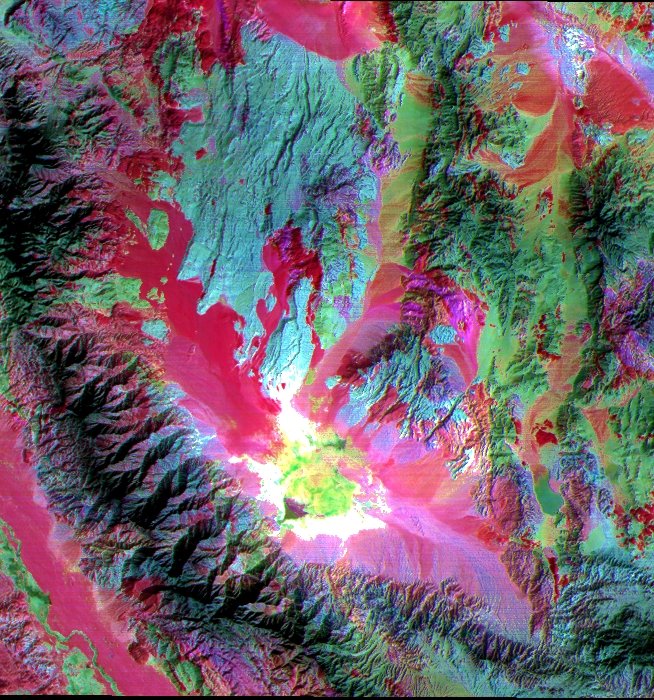
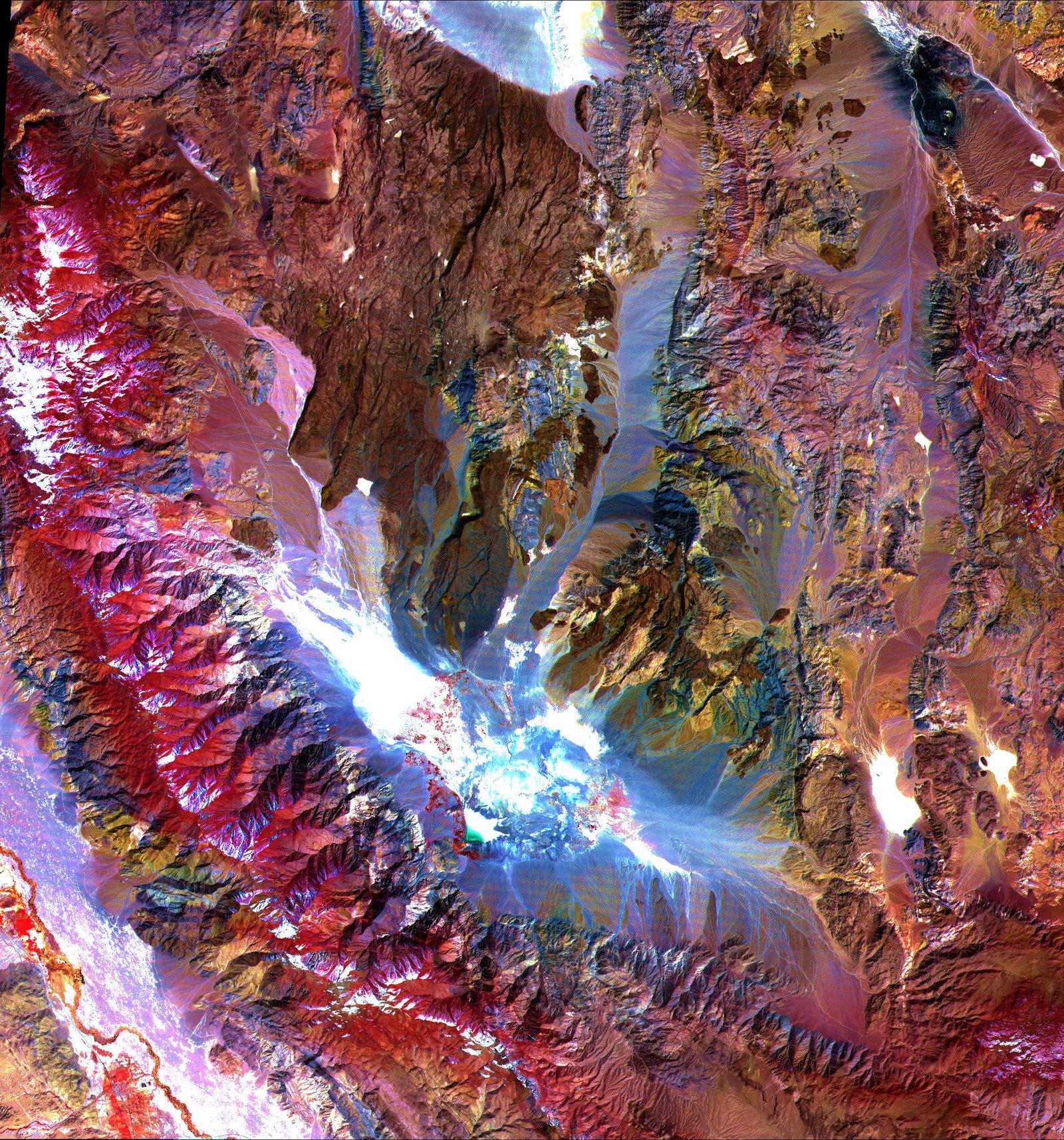
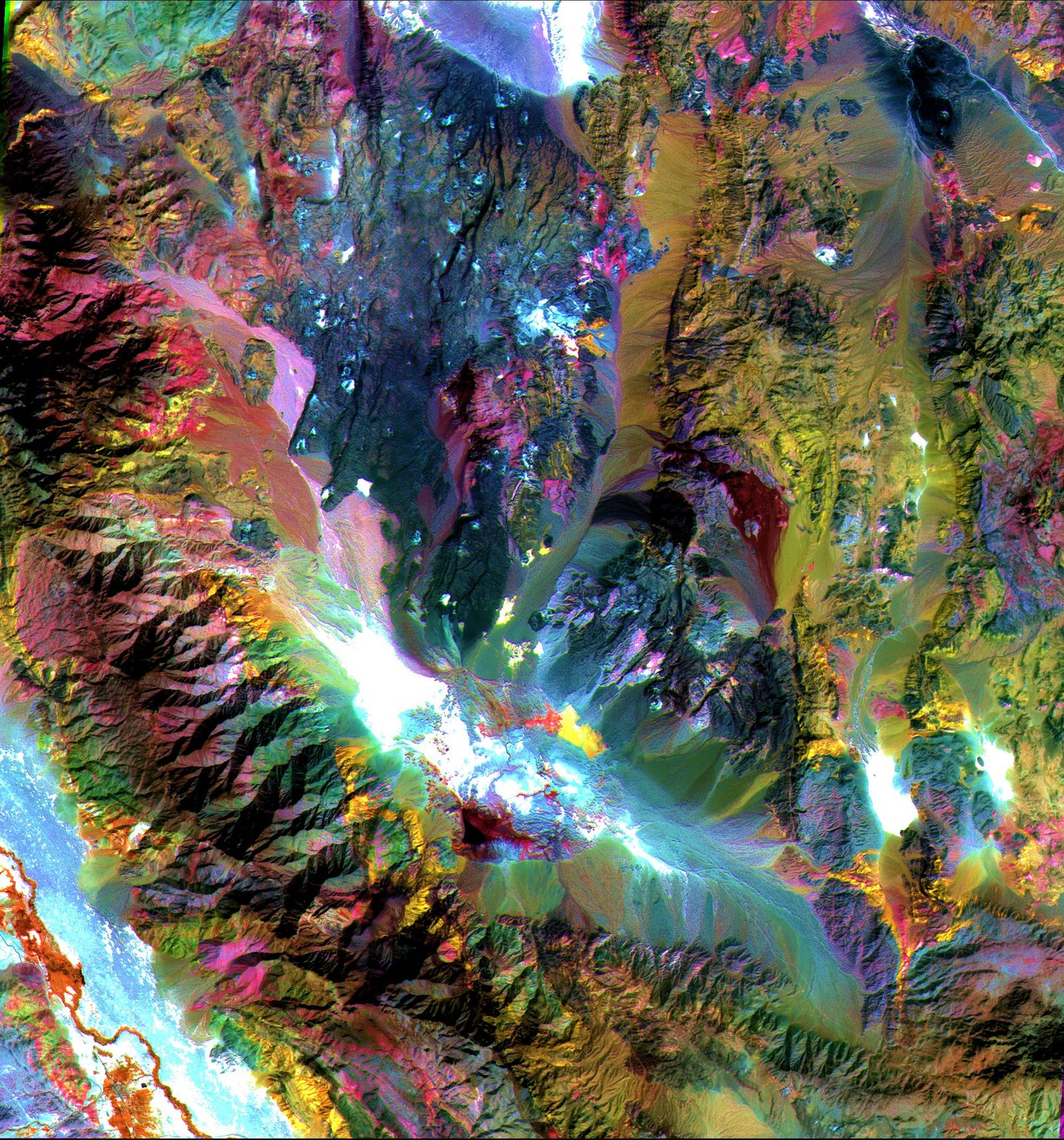
En el ejemplo de arriba, la imagen de la izquierda muestra bandas visibles y cerca de infrarrojas 3, 2, y 1 en rojo, verde y azul (RVA). La vegetación aparece roja, la nieve y los lagos de sal seca son blancos, y las rocas expuestas son café, grises, amarillas y azules. Los colores de las rocas pueden reflejar la presencia de minerales de hierro y variaciones de albedo. La imagen del centro muestra bandas infrarrojas de longitud de onda corta 4, 6, y 8 como RVA. En esta región de longitud de onda, arcilla, carbonato, y minerales sulfatos tienen características de absorción diagnósticas que resultan en colores distintos en la imagen. Por ejemplo, las piedras calizas son verde-amarillas y las zonas moradas son ricas en kaolinita. La imagen derecha muestra bandas infrarrojas térmicas 13, 12 y 10 como RVA. En esta región de longitud de onda, variaciones en contenido de cuarzo aparecen como más o menos rojas; las rocas carbonatas son verdes, y las rocas volcánicas ricas en magnesio y hierro son moradas.

Imagen de Satélite Pleiades-1A (0.5m)

Mina de Cobre del Cañón Bingham – Utah,USA

Copyright © AIRBUS Defence & Space.

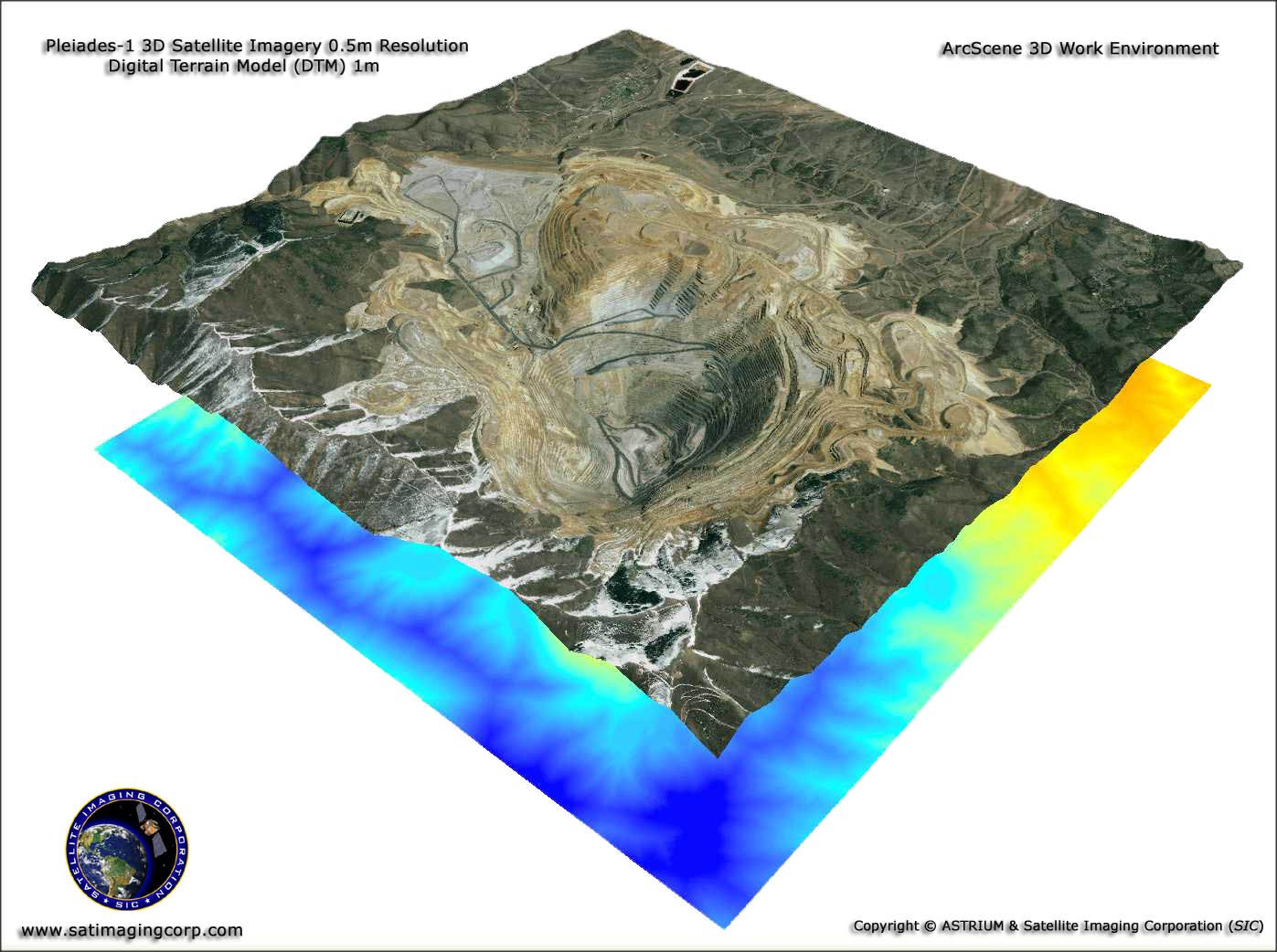
Imagen de Satélite Pleiades-1A (0.5m)

Mina de Cobre del Cañón Bingham – Utah,USA – ArcScene 3S View
Copyright © AIRBUS Defence & Space/processed by Satellite Imaging Corporation. All rights reserved.

La Corporación de Imágenes de Satélite (Satellite Imaging Corporation – SIC) suministra imágenes de satélite de alta resolución para análisis y aplicaciones de elaboración de mapas tales como el Sistema de Información Geográfico (Geographic Information System – GIS).  Nuestra producción de imágenes, Sistema de Información Geográfico (GIS), Sistema de Posicionamiento Global (GPS), y expertos en geodesia tienen vasta experiencia en procesamiento de imágenes, ortorrectificación, georreferencias, extracción de características, y elaboración de mosaicos para las necesidades específicas de su proyecto.

Además trabajamos con consultores peritos en geología y podemos utilizar sus conocimientos para interpretar los datos de imágenes para diferentes aplicaciones en minería y geología.

Si usted tiene en particular un proyecto geológico o sobre minería nos complacería revisar sus requisitos y darle un estimativo sobre lo que podemos suministrarle en apoyo de su proyecto.

Imágenes de muestra

Exploración, clasificación e interpretación de minerales

* Click on thumbnail to view in full resolution.

Para muchas solicitudes de imágenes, se puede localizar una imagen correspondiente en nuestros archivos globales de imágenes de satélite.  Si ninguna imagen estuviese disponible en los archivos, se pueden adquirir nuevas imágenes de satélite a través de un proceso de trabajo por medio de satélite.  Además de suministrar datos sobre imágenes, la Corporación de Imágenes de Satélite (Satellite Imaging Corporation) realiza muchas labores en su trabajo de fondo para asegurar que cumplamos las especificaciones y los requisitos de horario del cliente.

  • Negociar la consecución de imágenes
  • Procesar imágenes, incluyendo ortorrectificación, DSM, DTM, y conversiones de escalares de atributos a vectores
  • Suministrar visualización de terreno en 3D y modelar para planeación y asistencia técnica de proyectos
  • Incorporar información de GIS de partes terceras
  • Consultar sobre combinaciones de bandas más apropiadas para resaltar las características geográficas y las hechas por el hombre que sean más apropiadas para su proyecto
  • Realizar análisis espectral para clasificaciones del uso de la superficie terrestre y cambios en el impacto sobre el medio ambiente

Suministrar visualización de terreno en 3D y modelar para planeación y asistencia técnica de proyectos Incorporar información de GIS de partes terceras Consultar sobre combinaciones de bandas más apropiadas para resaltar las características geográficas y las hechas por el hombre que sean más apropiadas para su proyecto Realizar análisis espectral para clasificaciones del uso de la superficie terrestre y cambios en el impacto sobre el medio ambiente.

Información sobre imágenes de satélite ha sido utilizada tanto por el gobierno como por comunidades comerciales, industriales, civiles, y educativas a través del mundo.  La información se usa para respaldar una gran gama de aplicaciones en áreas tales como investigación sobre cambio global, agricultura, ciencias forestales, geología, manejo de recursos, geografía, elaboración de mapas, hidrología, y oceanografía.

La Corporación de Imágenes de Satélite está disponible para asesoría en sus necesidades de imágenes y elaboración de mapas de sus proyectos.  Por favor contáctenos para cualquiera pregunta.

Ready to get started?

Contact us for a custom imagery solution or request a quote

TESTIMONIALS

Stories & Experiences

Lorem ipsum dolor sit amet, consectetur adipiscing elit, sed do eiusmod tempor incididunt ut labore et dolore magna aliqua. Ut enim ad minim veniam, quis nostrud exercitation. .

FAQ’S

Frequently Asked Questions

How to find Geographic Coordinates in Google maps?

To find geographic coordinates in Google Maps, you can follow these steps:

  1. Open Google Maps in your web browser or on your mobile device.

  2. Search for the location you want to find the geographic coordinates for by entering the address, landmark, or name of the place in the search bar at the top of the page.

  3. Once the location is displayed on the map, right-click (or long-press on mobile) the exact point on the map where you want to find the coordinates. This will open a small menu.

  4. In the menu that appears, click on “What’s here?” or “What’s here? – Coordinates” option. On mobile devices, you may need to tap on the location marker first to reveal the menu options.

  5. A small information box will appear at the bottom of the screen, displaying the latitude and longitude coordinates of the selected point. The coordinates will be shown in decimal degrees format.

  6. You can click on the coordinates in the information box to expand it and see the coordinates in different formats, such as degrees, minutes, and seconds (DMS) or Universal Transverse Mercator (UTM) format.

To create a KML (Keyhole Markup Language) file in Google Earth, you can follow these steps:

  1. Download Google Earth Pro and Open on your computer.

  2. Navigate to the location or area you want to create a KML file for by using the search bar, zooming in/out, and panning on the map.

  3. Customize the view and layers in Google Earth Pro to include the specific data or elements you want to include in your KML file. This can include placemarks, paths, polygons, overlays, images, and more.

  4. Once you have set up the desired view and layers, go to the “Add” menu at the top of the screen and select the type of element you want to add (e.g., placemark, path, polygon, image overlay).

  5. Follow the prompts to add the specific element and provide the necessary information, such as location coordinates, name, description, and any additional properties or styling options.

  6. Repeat the previous step if you want to add more elements to your KML file.

  7. After adding all the desired elements, go to the “File” menu and select “Save Place As.”

  8. In the “Save Place As” dialog box, choose a location on your computer where you want to save the KML file.

  9. Specify the name of the KML file, ensuring it has the .kml extension (e.g., myfile.kmL), you may need to select KML as GoogleEarth defaults to KMZ formats.

  10.  Click the “Save” button to save the KMZ file to the specified location on your computer.

Ordering commercial high-resolution and medium-resolution satellite maps process:

  1. Identify your requirements: Determine the specific needs for the satellite maps, including the desired resolution, geographic coverage, acquisition date, and any additional specifications such as spectral bands or cloud cover constraints.

  2. Contact Us: Reach out to us to inquire about our imaging product and services. Provide us with the details of your requirements, including the area of interest, resolution, and any other specifications.

  3. If there is high urgency for imagery, please let us know that this is a time sensitive project. Any project deadlines should be included with your initial contact.

  4. Request a quote: Ask for a formal quote for the satellite maps you need. The quote should include information such as the cost, delivery timeline, licensing terms, and any additional services like data processing or analysis.

  5. Review the quote: Evaluate the quote provided by us and if needed, we can negotiate the terms, pricing, or any specific requirements that may not be fully covered.

  6. Confirm the order: Once you are satisfied with the quote and have reached an agreement, confirm your order. We will guide you through the necessary steps for payment and delivery.

  7. Receive the satellite maps: After the order is confirmed and payment is processed, you will receive the satellite map data in the specified format. This may include downloading the data from a secure portal or receiving physical media, depending on delivery method.

  8. Utilize the satellite maps: With the satellite maps that you receive, you can utilize it for your intended purposes, such as GIS data, 3D terrain maps, disaster, geospatial data, and other applications as needed.

Satellite map raw files refer to the unprocessed and unedited data captured by satellite sensors. These files contain the raw data received by the satellite sensors, including the reflected or emitted electromagnetic radiation from the Earth’s surface.

Satellite map raw files typically come in specialized formats specific to each satellite sensor or provider. These formats may include formats like GeoTIFF (georeferenced Tagged Image File Format) or ENVI (Environment for Visualizing Images). The raw files preserve the original sensor readings, which can include various spectral bands, radiometric information, and geometric parameters.

Raw files require processing to convert them into usable formats, such as georeferenced images or digital elevation model(DEM). Processing steps may involve radiometric and geometric corrections, atmospheric compensation, calibration, orthorectification, and mosaicking, among others.

Once processed, raw files can provide valuable information for various GIS data applications, including 3D terrain maps, agriculture production maps, vegetation maps, and disaster maps.

To download satellite maps from an FTP (File Transfer Protocol) server, you can follow these general steps:

  1. Obtain the FTP server information: Get the FTP server details from the satellite maps provider or the source you are accessing. This includes the FTP server address, username, password, and potentially the directory path to the imagery files.

  2. Choose an FTP client: Select an FTP client software or application that allows you to connect to the FTP server and perform file transfers. Some popular options include FileZilla, WinSCP, Cyberduck, or the built-in FTP functionality of certain web browsers.

  3. If you are unable to download an FTP client due to software locks, Windows has a built in FTP Protocol that can be accessed by copying the URL of the FTP server in your Windows File Explorer.

  4. Depending on the method to connect to the FTP, you will need credentials including a Username and Password to access these file.

  5. Most FTP clients will allow you to Copy and Paste or Drag and Drop the files from the client window to your local files.

Remember to comply with any terms and conditions associated with the satellite map data, including usage restrictions, licensing agreements, and any attribution requirements specified by the provider.

For any other questions or for a consultation, please contact us.

Scroll to Top