Pù Mát National Park, Vietnam
Pù Mát National Park, established in 2001, is a tropical northern coastal region in Vietnam with a rich and diverse ecosystem that is home to many species of wildlife, including fauna, reptiles, birds, amphibians, and mammals. Pù Mát National Park is also home to many endangered species, including:
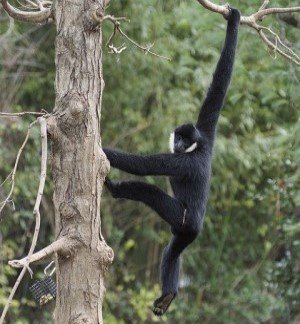
- Northern white-cheeked gibbon
- Owston’s Civet
- Sunda Pangolin
- Red-shanked douc
- Saola
- Truong Son muntjac
- Annamite striped rabbit
- Assam macaque
- Ussuri dhole
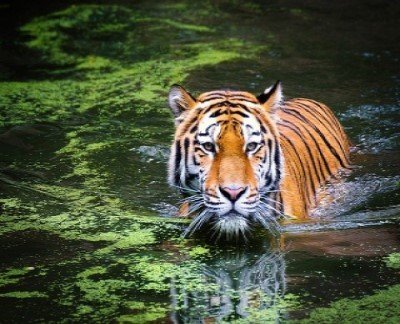
- Indochinese tiger
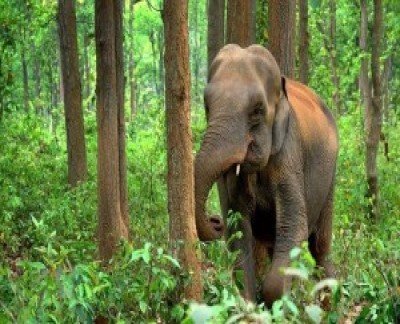
- Indian elephant
Scientists and conservationists are hard at work trying to protect the park from illegal activities such as trapping and poaching as a consequence of the high demand for wildlife trade. Adding to this threat are habitat loss, deforestation, and other factors, causing the accelerated decline of many species. Poaching has escalated in recent years, and in response, new technologies are being employed to aid in the conservation efforts and help the anti-poaching teams on the ground.
Pù Mát National Park is the largest in Vietnam with over 94,000 hectares and has many groups of Northern white-cheeked gibbon primates which are critically endangered and nearly extinct. Other species that are critically endangered are the Owston’s Civet and Sunda Pangolin which are disappearing rapidly. Local NGO’s like Save Vietnam Wildlife working with its government partners have set up Pu Mat National Park as a site of global importance to ensure the protection of these two species.
Remote Sensing and AI for Wildlife Conservation – Pù Mát National Park
Artificial intelligence (AL) and remote sensing when used together, can benefit scientists and conservationists for wildlife monitoring and mapping that has proven to be an effective way to aid in conservation efforts.
Remote sensing, geographic information systems (GIS), and artificial intelligence (AI) can help track, monitor, and analyze wildlife in the most remote areas of protected parks and aids in improving the way endangered wildlife are monitored and protected from illegal activities such as poaching, and deforestation.
AI for wildlife conservation takes advantage of Machine Learning (ML) and Computer Vision (CV) models. Using imagery collected by satellites or unmanned aerial vehicles (UAV) these models can predict behavior and provide near real-time reports of repetitive attacks by poachers that will assist anti-poaching teams in catching the offenders. This state-of-the-art technology enables scientists and conservationists to decrease illegal activities such as attacks on wildlife and natural resources.
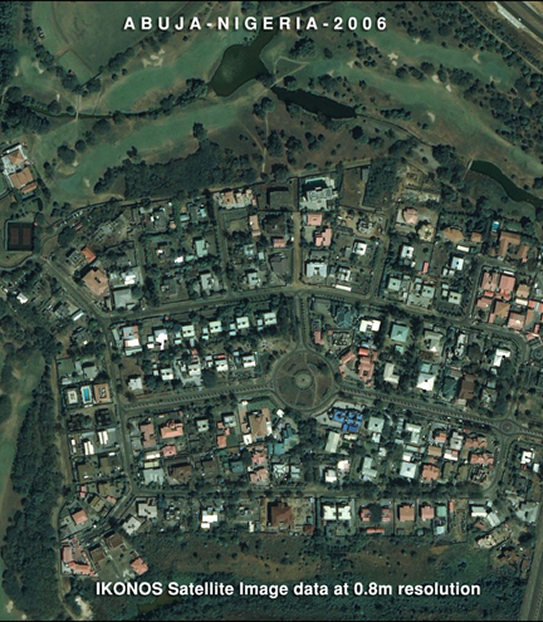
Satellite Imaging Corporation (SIC) in collaboration with Aiforgood Asia and Save Vietnam Wildlife (SVW) will be working together in support of the conservation efforts in Pù Mát National Park. Using the latest state of the art technology from these partners will include satellite imagery, GIS data, artificial intelligence, computer vision, and machine learning platforms to ensure the park has the latest up-to-date technology to protect these important species for future generations.