Agricultura ES

Discover what’s possible.

Get a complimentary consultation today.

Discover what’s possible.

Get a complimentary consultation today.

Con el aumento en la presión de población por todo el mundo y la necesidad de una producción agrícola creciente existe una necesidad definida de una mejor administración de los recursos agrícolas del mundo. Para que esto suceda es necesario en primer lugar obtener datos fiables de no solamente los tipos, sino también la calidad, cantidad y ubicación de estos recursos. La tecnología satelital o aérea de Detección Remota (RS por sus siglas en inglés) ha sido y siempre continuará siendo un factor muy importante en la mejora de los sistemas presentes de adquirir y generar datos agrícolas y de recursos.

Evaluación administrada de la cubierta vegetal
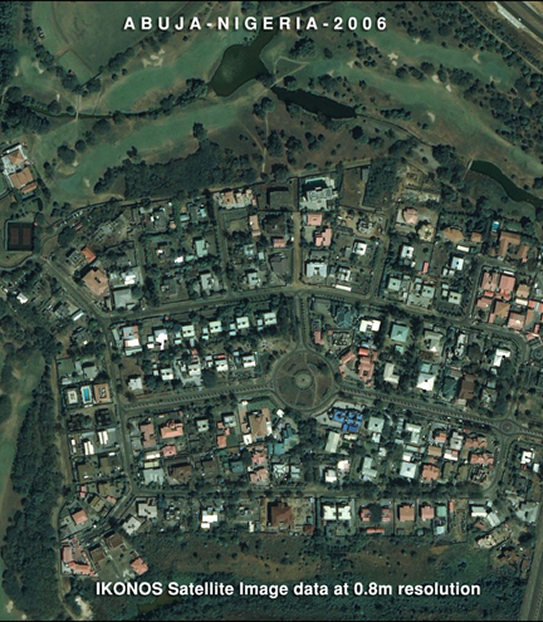
Copyright © DigitalGlobe. All rights reserved.

Se están llevando a cabo en la actualidad encuestas agrícolas por todo el mundo a fin de recoger información y estadísticas de cosechas, praderas, ganado y otros recursos agrícolas relacionados. Esta información de datos es muy importante para la implementación de decisiones eficaces de administración. La encuesta agrícola es necesaria para planificar y asignar los limitados recursos a diferentes sectores de la economía.

Satellite Imaging Corporation proporciona datos de imágenes satelitales a diferentes resoluciones espaciales, espectrales y temporales para la evaluación agrícola y de cultivos, salud de los cultivos, detección de cambio, análisis ambiental, , cartografía de regadío, determinación de rendimiento y análisis de suelos. La programación y el momento de la adquisición de la imagen son muy importantes y dependerán de los objetivos principales y del tipo de información que el usuario final espera conseguir. Las imágenes pueden mostrar variaciones en los patrones de material orgánica y drenaje. Suelos con un alto contenido de materia orgánica pueden diferenciarse de suelo arenoso más claro que tiene un contenido de materia orgánica más bajo. Esta información geoespacial es valiosa cuando se usa conjuntamente con datos complementarios para definir zonas de administración para un campo. Una vez que se han recogido los datos, pueden implementarse en un ambiente cartográfico tal como GIS (Sistema Geográfico de Información) para la administración y control de recursos agrícolas.

Analisis de Vegetacion

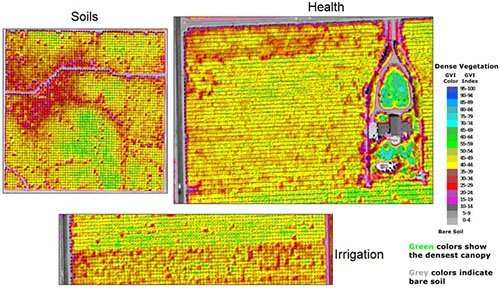
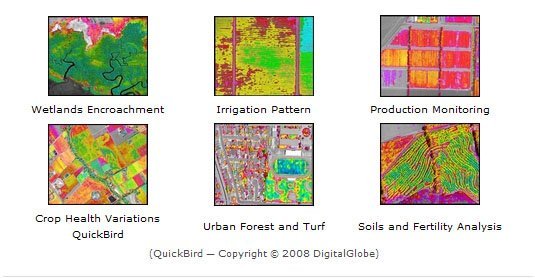
Imágenes de vegetación — muestran crecimiento de cultivo desde la siembra a la cosecha, cambios a medida que las estaciones progresan y anormalidades tales como terrenos de malas hierbas, compresión del suelo, problemas de riego, etc. Una imagen georeferenciada y ortorrectificada puede localizar estas áreas problemáticas y puede determinarse fácilmente también el tamaño del área afectada. Esta información puede ayudar al granjero a tomar decisiones informadas acerca de la solución más factible. Además de realzar áreas problemáticas, las imágenes ayudarán a controlar la eficacia de cualquier acción correctiva que pueda implementarse. Las imágenes pueden actuar como un indicador temprano del rendimiento de la cosecha. Este indicador temprano de rendimiento puede ayudar al granjero a tomar decisiones de marketing así como a la asignación de recursos.

Para ganar beneficios de datos detectados a distancia, los granjeros, gerentes, consultores y técnicos deben entender y ser capaces de interpretar la imagen. Existe una amplia gama de herramientas de realce disponibles que pueden ayudar a hacer una mejor interpretación de una imagen para aplicaciones específicas. A menudo se usan herramientas de realce y clasificación para poner de relieve características. Las técnicas empleadas dependerán del tipo de datos de detección a distancia así como de los objetivos del usuario final. Las técnicas comúnmente usadas incluyen:

Detección de cambio — o estudio de cambios de vegetación restando una imagen de otra imagen adquirida anteriormente.
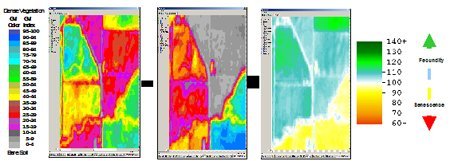
Copyright © DigitalGlobe. All rights reserved.

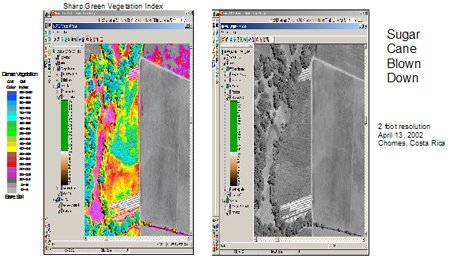
Clasificaciones — donde los pixeles de una imagen se clasifican en clases y a cada clase se le da un color único definido por las “firmas” espectrales. Una clasificación supervisada requiere conocimiento de los datos a medida que el analista selecciona pixeles que corresponden a características conocidas (tales como diferencias en la cobertura vegetal). Clasificaciones no supervisadas son más automatizadas por computadora y agrupan pixeles que tienen características espectrales similares. Muchas compañías usan este enfoque para producir una imagen de un campo con numerosos niveles de color de 8-15 que corresponden a área vegetal o masa de plantas.
Copyright © DigitalGlobe. All rights reserved.

Índices de vegetación — Usando la firma espectral distintiva de plantas con reflectancia baja en la zona visible (0.4-0.7 um) y muy alta reflectancia en la región cercana al infrarrojo (0.7-1.2 um) del espectro solar, el contraste espectral puede usarse para identificar la presencia de vegetación verde y evaluar algunas características a través de varios índices de vegetación, tales como el Índice Normalizado de Diferencia de Vegetación (NDVI).
Copyright © DigitalGlobe. All rights reserved.

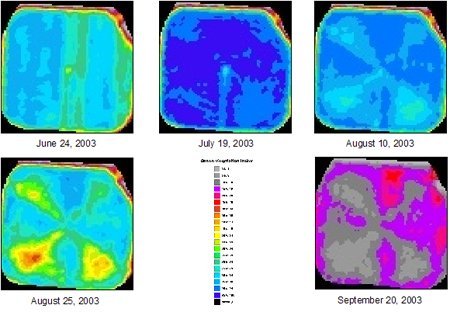
Respuesta de la vegetación al riego
Copyright © DigitalGlobe. All rights reserved.

Satellite Imaging Corporation utiliza y proporciona técnicas avanzadas de detección remota, servicios de procesado de datos de imágenes en color y pancromáticas, incluyendo ortorrectificación, definición de tomas panorámicas con fusión de datos de imágenes, georeferenciación, mosaicos y equilibrado de color/escala gris para GIS y otras aplicaciones cartográficas.

SIC está disponible para consultoría de todas las necesidades y especificaciones de su proyecto. Usted puede contactarnos por Internet o telefoneando al +1 (832) 237-2900.


Ready to get started?

Contact us for a custom imagery solution or request a quote

TESTIMONIALS

Stories & Experiences

Lorem ipsum dolor sit amet, consectetur adipiscing elit, sed do eiusmod tempor incididunt ut labore et dolore magna aliqua. Ut enim ad minim veniam, quis nostrud exercitation. .

FAQ’S

Frequently Asked Questions

How to find Geographic Coordinates in Google maps?

To find geographic coordinates in Google Maps, you can follow these steps:

  1. Open Google Maps in your web browser or on your mobile device.

  2. Search for the location you want to find the geographic coordinates for by entering the address, landmark, or name of the place in the search bar at the top of the page.

  3. Once the location is displayed on the map, right-click (or long-press on mobile) the exact point on the map where you want to find the coordinates. This will open a small menu.

  4. In the menu that appears, click on “What’s here?” or “What’s here? – Coordinates” option. On mobile devices, you may need to tap on the location marker first to reveal the menu options.

  5. A small information box will appear at the bottom of the screen, displaying the latitude and longitude coordinates of the selected point. The coordinates will be shown in decimal degrees format.

  6. You can click on the coordinates in the information box to expand it and see the coordinates in different formats, such as degrees, minutes, and seconds (DMS) or Universal Transverse Mercator (UTM) format.

To create a KML (Keyhole Markup Language) file in Google Earth, you can follow these steps:

  1. Download Google Earth Pro and Open on your computer.

  2. Navigate to the location or area you want to create a KML file for by using the search bar, zooming in/out, and panning on the map.

  3. Customize the view and layers in Google Earth Pro to include the specific data or elements you want to include in your KML file. This can include placemarks, paths, polygons, overlays, images, and more.

  4. Once you have set up the desired view and layers, go to the “Add” menu at the top of the screen and select the type of element you want to add (e.g., placemark, path, polygon, image overlay).

  5. Follow the prompts to add the specific element and provide the necessary information, such as location coordinates, name, description, and any additional properties or styling options.

  6. Repeat the previous step if you want to add more elements to your KML file.

  7. After adding all the desired elements, go to the “File” menu and select “Save Place As.”

  8. In the “Save Place As” dialog box, choose a location on your computer where you want to save the KML file.

  9. Specify the name of the KML file, ensuring it has the .kml extension (e.g., myfile.kmL), you may need to select KML as GoogleEarth defaults to KMZ formats.

  10.  Click the “Save” button to save the KMZ file to the specified location on your computer.

Ordering commercial high-resolution and medium-resolution satellite maps process:

  1. Identify your requirements: Determine the specific needs for the satellite maps, including the desired resolution, geographic coverage, acquisition date, and any additional specifications such as spectral bands or cloud cover constraints.

  2. Contact Us: Reach out to us to inquire about our imaging product and services. Provide us with the details of your requirements, including the area of interest, resolution, and any other specifications.

  3. If there is high urgency for imagery, please let us know that this is a time sensitive project. Any project deadlines should be included with your initial contact.

  4. Request a quote: Ask for a formal quote for the satellite maps you need. The quote should include information such as the cost, delivery timeline, licensing terms, and any additional services like data processing or analysis.

  5. Review the quote: Evaluate the quote provided by us and if needed, we can negotiate the terms, pricing, or any specific requirements that may not be fully covered.

  6. Confirm the order: Once you are satisfied with the quote and have reached an agreement, confirm your order. We will guide you through the necessary steps for payment and delivery.

  7. Receive the satellite maps: After the order is confirmed and payment is processed, you will receive the satellite map data in the specified format. This may include downloading the data from a secure portal or receiving physical media, depending on delivery method.

  8. Utilize the satellite maps: With the satellite maps that you receive, you can utilize it for your intended purposes, such as GIS data, 3D terrain maps, disaster, geospatial data, and other applications as needed.

Satellite map raw files refer to the unprocessed and unedited data captured by satellite sensors. These files contain the raw data received by the satellite sensors, including the reflected or emitted electromagnetic radiation from the Earth’s surface.

Satellite map raw files typically come in specialized formats specific to each satellite sensor or provider. These formats may include formats like GeoTIFF (georeferenced Tagged Image File Format) or ENVI (Environment for Visualizing Images). The raw files preserve the original sensor readings, which can include various spectral bands, radiometric information, and geometric parameters.

Raw files require processing to convert them into usable formats, such as georeferenced images or digital elevation model(DEM). Processing steps may involve radiometric and geometric corrections, atmospheric compensation, calibration, orthorectification, and mosaicking, among others.

Once processed, raw files can provide valuable information for various GIS data applications, including 3D terrain maps, agriculture production maps, vegetation maps, and disaster maps.

To download satellite maps from an FTP (File Transfer Protocol) server, you can follow these general steps:

  1. Obtain the FTP server information: Get the FTP server details from the satellite maps provider or the source you are accessing. This includes the FTP server address, username, password, and potentially the directory path to the imagery files.

  2. Choose an FTP client: Select an FTP client software or application that allows you to connect to the FTP server and perform file transfers. Some popular options include FileZilla, WinSCP, Cyberduck, or the built-in FTP functionality of certain web browsers.

  3. If you are unable to download an FTP client due to software locks, Windows has a built in FTP Protocol that can be accessed by copying the URL of the FTP server in your Windows File Explorer.

  4. Depending on the method to connect to the FTP, you will need credentials including a Username and Password to access these file.

  5. Most FTP clients will allow you to Copy and Paste or Drag and Drop the files from the client window to your local files.

Remember to comply with any terms and conditions associated with the satellite map data, including usage restrictions, licensing agreements, and any attribution requirements specified by the provider.

For any other questions or for a consultation, please contact us.

Scroll to Top