Soil Moisture and Artificial Intelligence (AI) Water Management
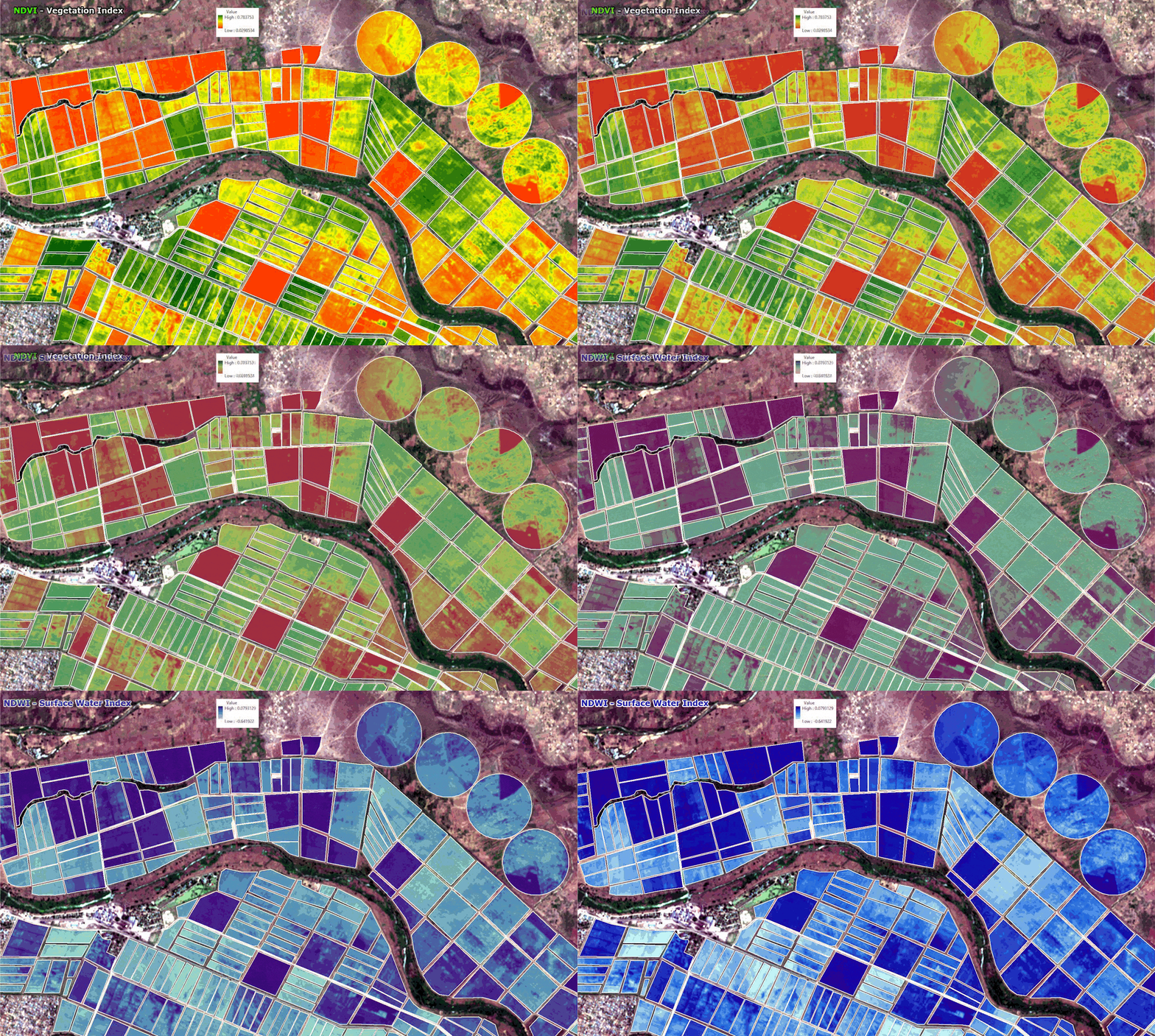
Agriculture is the world’s largest industry and employs more than one billion people. Providing the agriculture food industry with soil, vegetation moisture, temperature, and biomass data. Utilizing Artificial Intelligence (AI) water management systems has improved management and monitoring of crop health, avoid waterlogging problems, contribute to sustained yield gains, and improved farming practices worldwide.There is an critical need to improve the supply of food products with the growing population numbers around the Globe.
The passive SMOS and other microwave satellite sensors register the signals that radiate from the Earth’s surface, providing up-to-date information on water availability, soil conditions, and crop health for agriculture production fields around the Globe. This passive microwave technology detects, during darkness and through clouds, resolves waterlogging, and irrigation problems, because water damage to crops and any vegetation, can be extremely costly and can be avoided.
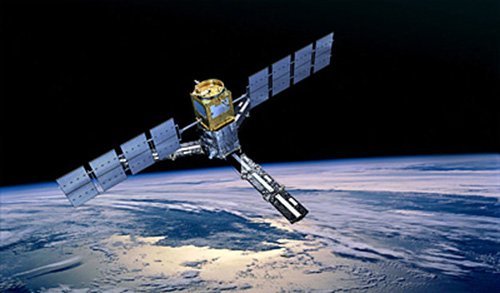
SMOS Satellite Sensor
Copyright © ESA. All rights reserved
Soil moisture and AI water data are urgently required for hydrological studies and data is vital for improving our understanding of ocean circulation patterns which will contribute to furthering our knowledge of the Earth’s water cycle, and will improve climate, weather, and extreme-event forecasting.
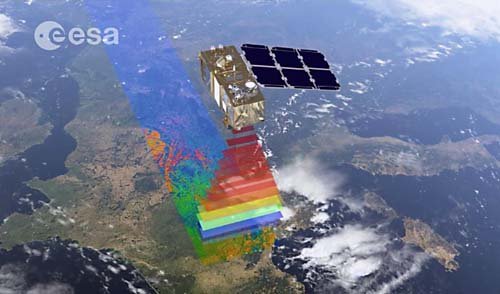
Sentinel-2 Satellite Sensor
Copyright © ESA. All rights reserved.
WorldView-3 Satellite Map Forest Fires Animation – Canada
Click on the image to view animation
Copyright © MAXAR/processed by Satellite Imaging Corporation. All rights reserved.
Soil Moisture and AI Water Management demonstrates a new measuring technique by adopting a completely different approach in a field of observing the earth from space. A novel instrument that has been developed is capable of deriving both soil moisture and ocean salinity by capturing images of emitted microwave radiation around the frequency of 1.4 GHz (L-band). SMOS will carry the first-ever, polar-orbiting, space-borne, 2-D interferometric radiometer.
Despite the coarse resolution of 100-meters, L-band passive microwave observations can detect differences in surface moisture even under dense crops.
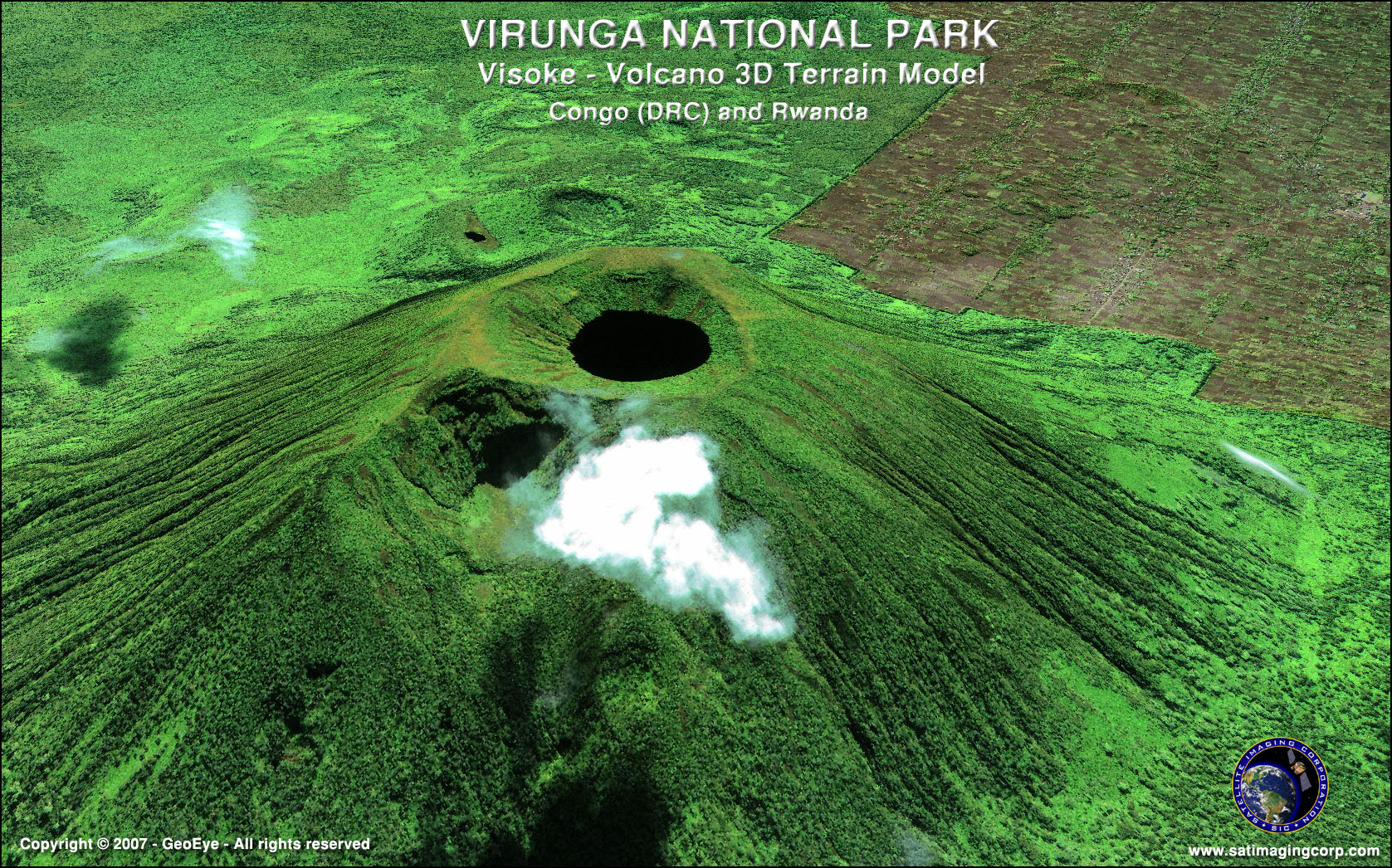
Remote Sensing and Artifical Intelligence (AI) for Deforestation
Deforestation has been attributed to socio-demographic factors, such as population growth, and the political economy of class structure, and specific exploitation activities like commercial logging, forest farming, fuel wood gathering, agriculture, and pasture clearance for cattle production.
Utilizing high-resolution multi-spectral satellite imagery in deep learning environments such Artificial Intelligence (AI), Machine Learning (ML), and Computer Vision (CV) algorithms, image data is collected and processed, extracting spectral data and transferred into management solutions for deforestation monitoring. AI has been used for climate change to aid in the prediction and monitoring of droughts, greenhouse gases, cloud cover, and weather patterns.
AI and Geographic Information Systems (GIS) tools can support forest monitoring and management of deforestation activities by utilizing image data collected by satellites, fix wing aircraft, or unmanned aerial vehicles (UAV). This data is collected and processed to provide NDVI and many other vegetation indices to identify land being cleared legally or illegally. The ability of AI and GIS to analyze and visualize environments and workflows has proven to be very beneficial to those involved in the forestry industry. Read more on deforestation in the Amazon Rainforest.
Soil Water Index & Waterlogging Detection
Xinavane, Mozambique
Click on image to view animation.
Background Image © Google Earth
Although soil only holds a small percentage of the total global water budget, soil moisture plays a vital role in the worldwide water cycle, so it controls vegetation growth to a large extent. In-situ soil moisture measurements are sparse, and more data is urgently required to understand the water cycle.
Consultancy
Ongoing satellite, aerial and UAV remote sensing, AI/ML and CV consultancy services are provided to our customers to provide cost effective digital mapping and GIS solutions. For more information or for a consultation, please contact us.