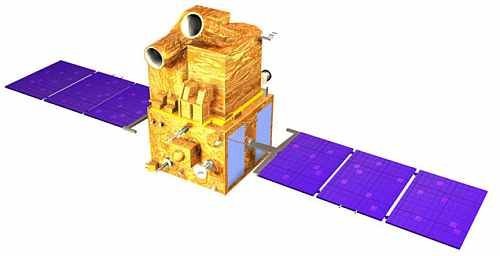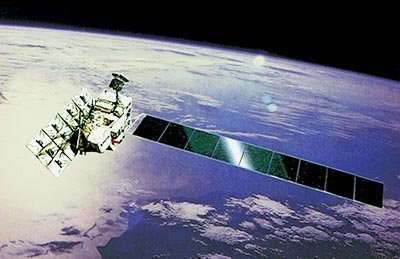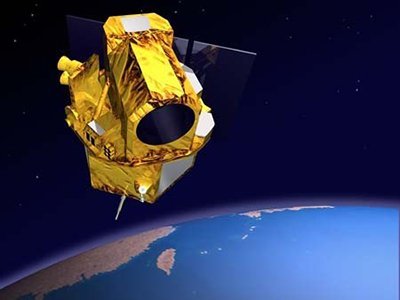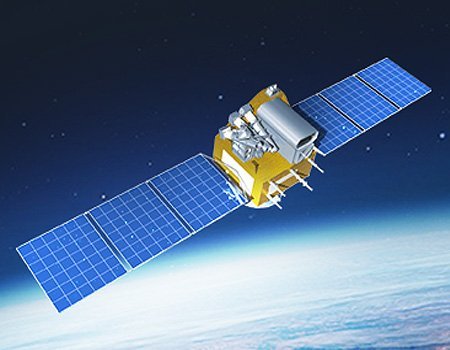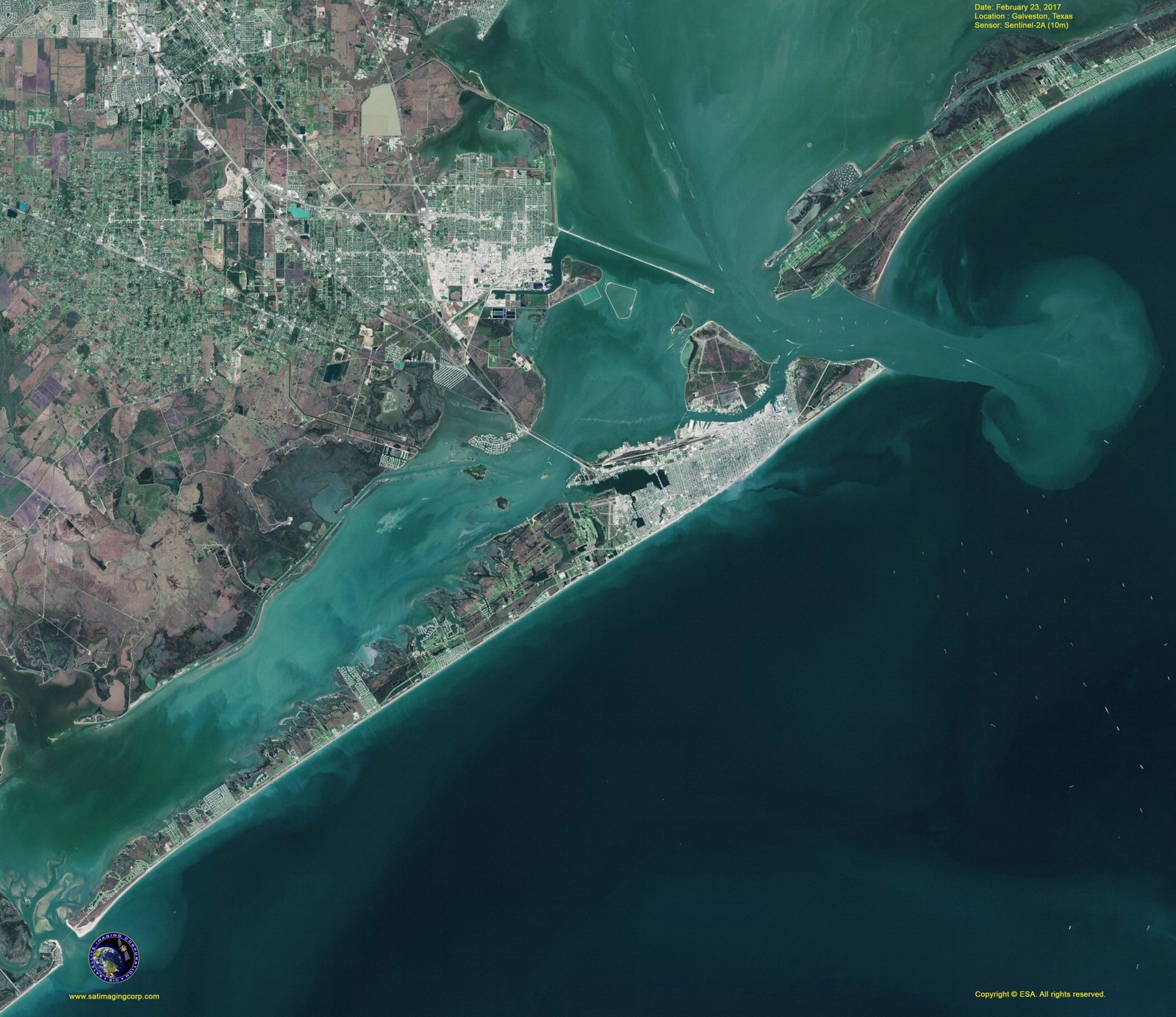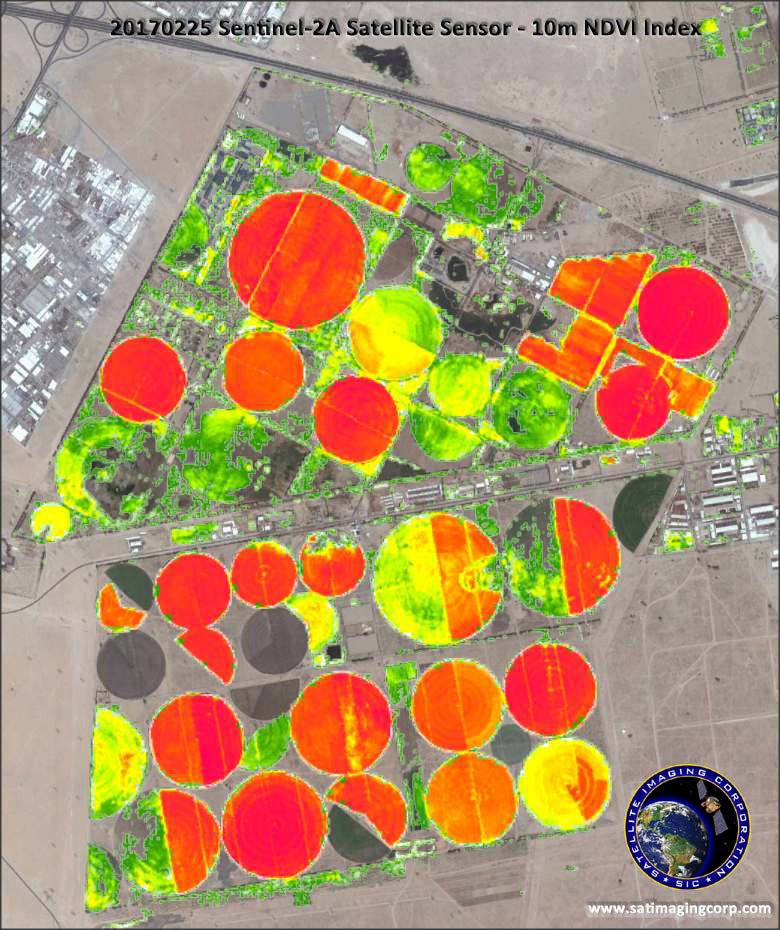
Sentinel-2A Satellite Sensor
(10m)
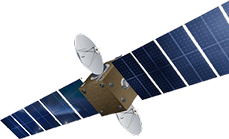
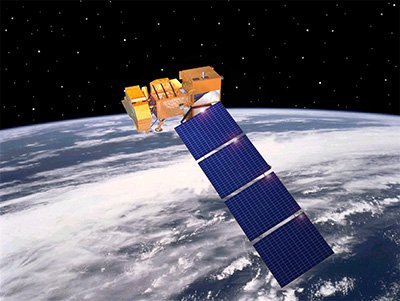
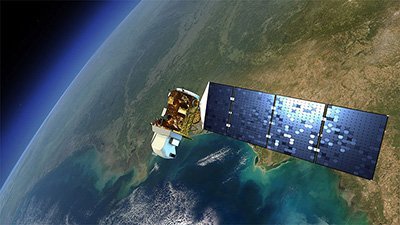
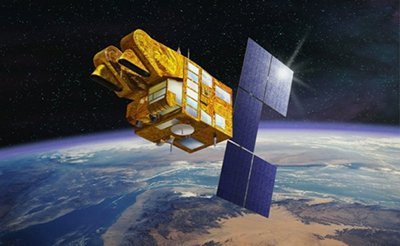
Sentinel-2A satellite sensor was successfully launched on June 23, 2015, at 03.51:58 am CEST from a Vega launcher from the spaceport in Kourou, French Guiana. Sentinel-2A satellite is the first optical Earth observation satellite in the European Copernicus program and was developed and built under the industrial leadership of Airbus Defence and Space for the European Space Agency (ESA).
Sentinel-2A (10m) Satellite Sensor

Copyright © ESA and AIRBUS Defence & Space. All rights reserved.
Sentinel-2A satellite was built by Airbus Defence and Space will add color to the Copernicus program through the multispectral instrument that provides unique image quality. Copernicus is the new name of the European Commission’s Earth Observation Programme, previously known as GMES (Global Monitoring for Environment and Security).
The mission is dedicated to the full and systematic coverage of land surface including major islands globally with the objective to provide cloud free products typically every 15 to 30 days over Europe and Africa.
PlanetScope Fusion
PlanetScope’s Fusion using Sentinel-2A and Sentinel-2B satellite image data at 10 m spatial resolution is resampled to 3 meter resolution. The Sentinel-2 satellite image data can support important farming and agriculture data to manage crop yields, production, health, and weather patterns. The high resolution spectral image data can provide critical information for monitoring crop health and growth, that can improve farming and agriculture production. Sentinel-2 satellites and other earth observation satellite data can be combined using spatial, temporal and spectral advantages of multiple earth observation satellite sensors. The span of 13 spectral bands, from the visible and the near-infrared to the shortwave infrared at different spatial resolutions ranging from 10 to 60-meters on the ground, takes global land monitoring to an unprecedented level.
Sentinel-2 satellite image data will support:
- Generic land cover, land use, and change detection maps
- Maps of geophysical variables for leaf area index, leaf chlorophyll content, and leaf water content
The four bands at 10-meter resolution ensure continuity with missions such as SPOT-5 or Landsat-8 to address user requirements, in particular, for basic land-cover classification. The six bands at 20-meter resolution satisfy requirements for enhanced land-cover classification and for the retrieval of geophysical parameters. Bands at 60 meters are dedicated mainly to atmospheric corrections and cirrus-cloud screening.
Sentinel-2A satellite is the first civil optical Earth observation mission of its kind to include three bands in the ‘red edge’, which provide key information on the vegetation state.
Sentinel-2A satellite will be able to see very early changes in plant health due to its high temporal, spatial resolution, and 3 red edge bands. This is particularly useful for the end-users and policymakers for agriculture applications and to detect early signs of food shortages in developing countries.
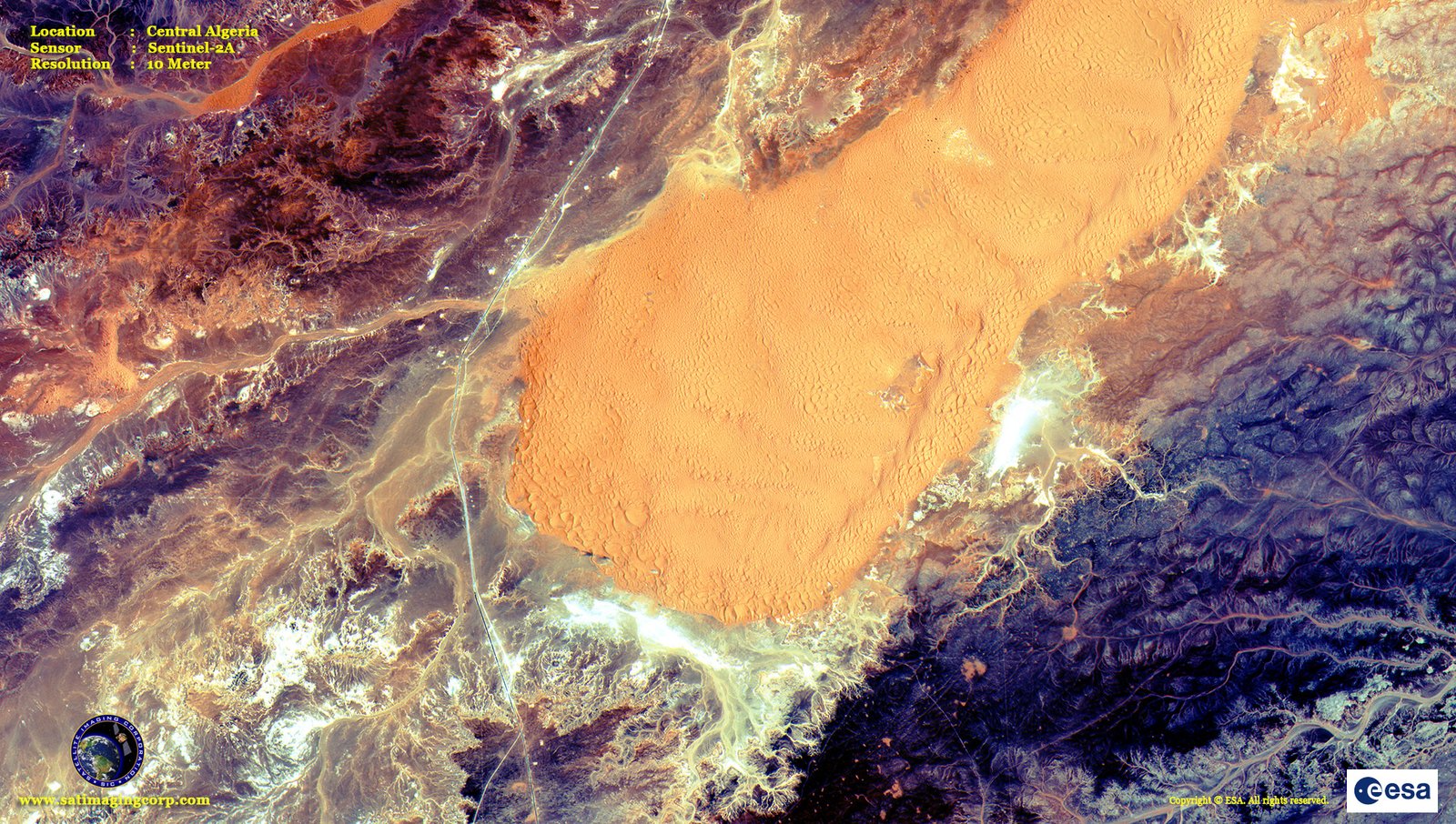
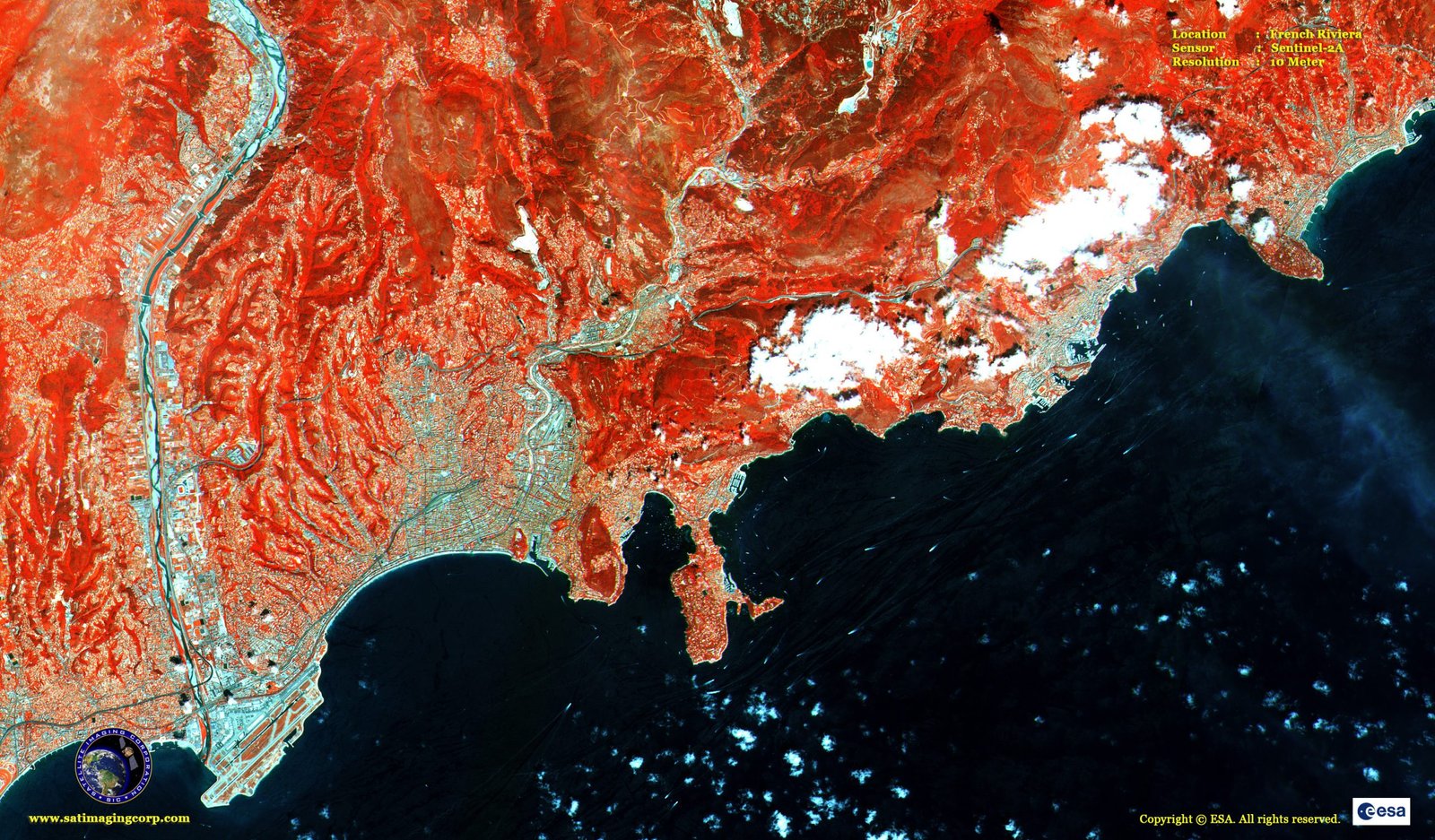
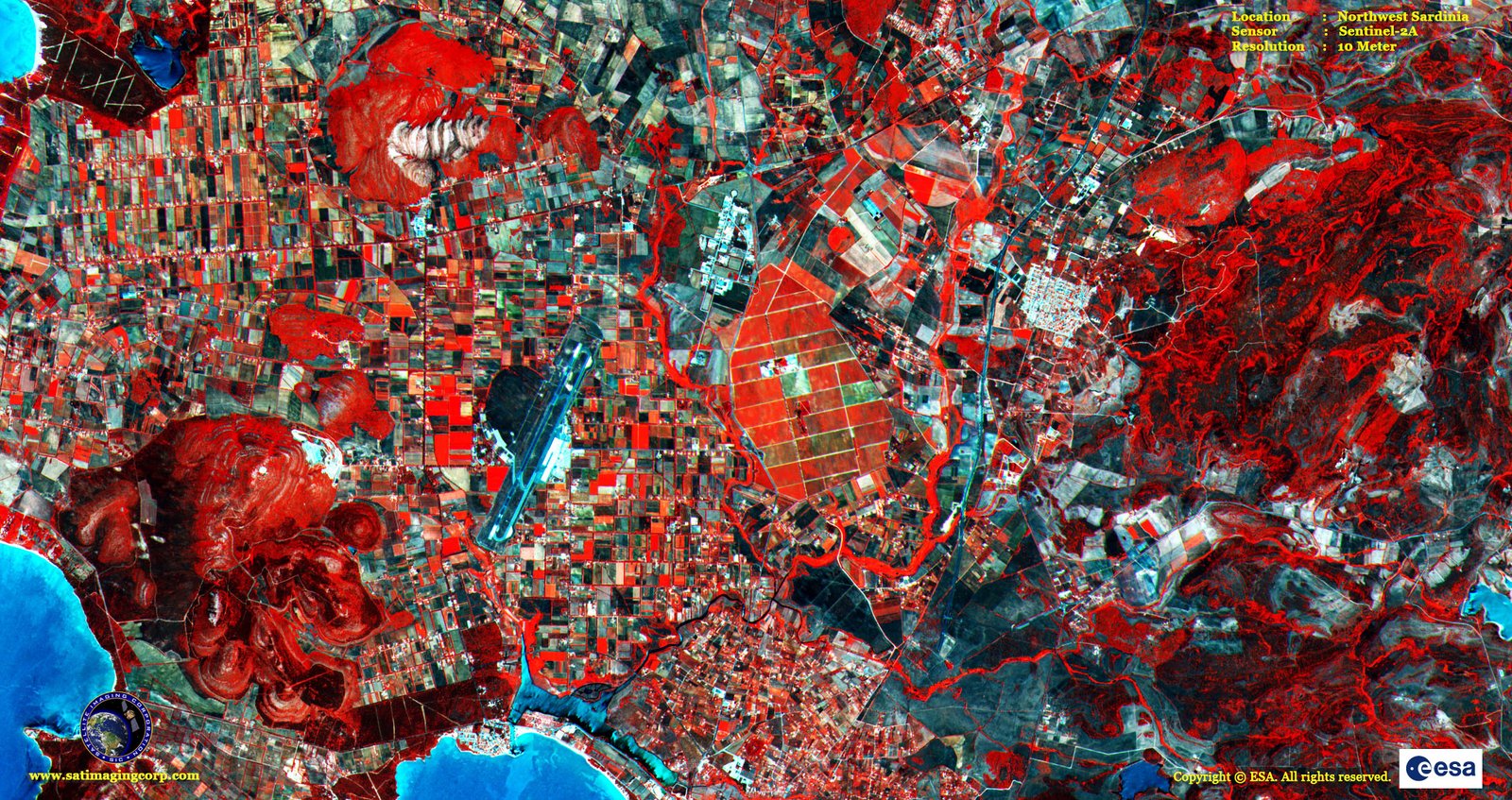
Sample Images
Sentinel-2A Satellite Image Gallery
* Click on thumbnail to view in full resolution.
For more information on any of our products and image processing services, please contact us for a complimentary consultation.
Sentinel-2A and 2B Satellite Sensor Specifications
Sentinel-2A launch
June 2015, by Vega from Kourou, French Guiana
Sentinel-2B launch
July 2016, by Rockot from Plesetsk, Russia
Orbit
Sun-synchronous at altitude 786 km, Mean Local Solar Time at descending node: 10:30 (optimum Sun illumination for image acquisition)
Geometric revisit time
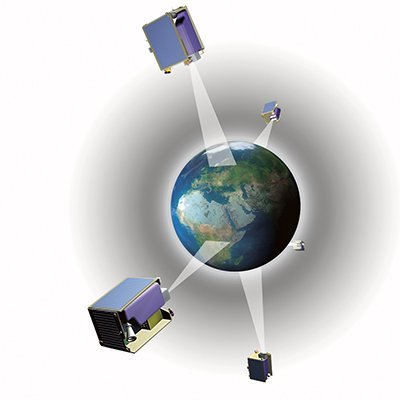
Five days from two-satellite constellation (at equator)
Design life
Seven years (carries consumable for 12 years: 123 kg of fuel including end of life deorbiting)
MSI (Multispectral Imager)
MSI covering 13 spectral bands (443–2190 nm), with a swath width of 290 km and a spatial resolution of 10 m (four visible and near-infrared bands), 20 m (six red edge and shortwave infrared bands) and 60 m (three atmospheric correction bands).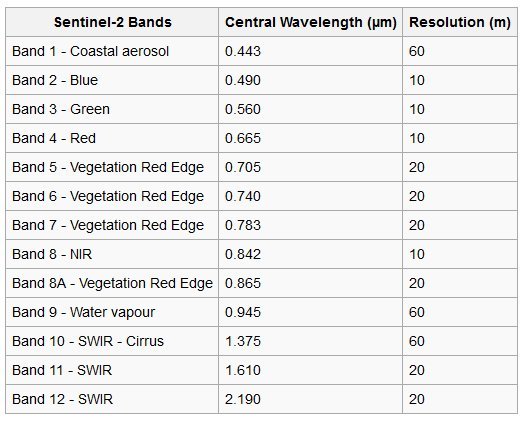
Receiving stations
MSI data: transmitted via X-band to core Sentinel ground stations and via laser link through EDRS. Telecommand and telemetry data: transmitted from and to Kiruna, Sweden
Main applications
Agriculture, forests, land-use change, land-cover change. Mapping biophysical variables such as leaf chlorophyll content, leaf water content, leaf area index; monitoring coastal and inland waters; risk and disaster mapping
Mission
Managed, developed, operated and exploited by various ESA establishments
Funding
ESA Member States and the European Union
Prime contractors
Airbus Defence & Space Germany for the satellite, Airbus Defence & Space France for the instrument
Cooperation
CNES: Image quality optimization during in-orbit commissioning
DLR: Optical Communication Payload (provided in kind)
NASA: cross calibrations with Landsat-8